

Migrate to WhatsApp Business API
This guide explains how to move a number connected by QR code to the official WhatsApp Business API (WABA) in Textime Chat. The number stays the same and keeps working in the WhatsApp Business app on your phone (Coexistence).
Before you start, read the requirements and the limitations: on the API, Meta charges your WhatsApp Business Account for messages.
Where to Start the Migration
The migration starts from the number's page in Textime Chat, on a computer:
- On the home page, click the ⚙️ icon on the number's card and choose Manage number.
- In the WhatsApp number section, click the ⚙️ Actions icon at the top right of the number's card.
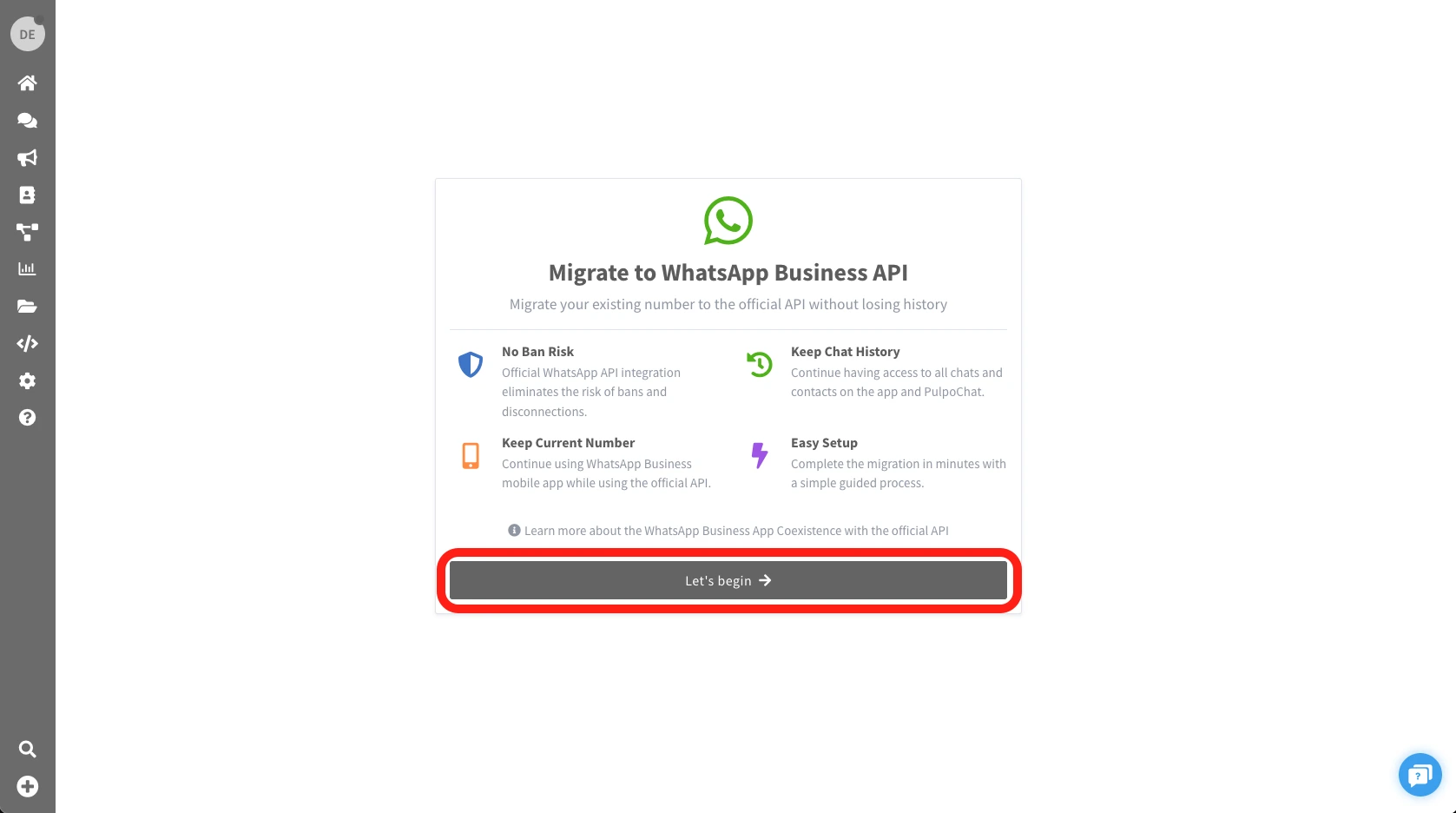
- Click Change connection. The migration assistant opens on its first screen, with the "Let's begin" button.
Only the account owner and administrators can migrate a number. If Change connection isn't there, see Can't find the migration option under Troubleshooting.
On a phone, the same option is in the number's settings, under Connection and session → Move to the official API. The migration itself is finished on a computer.
Requirements
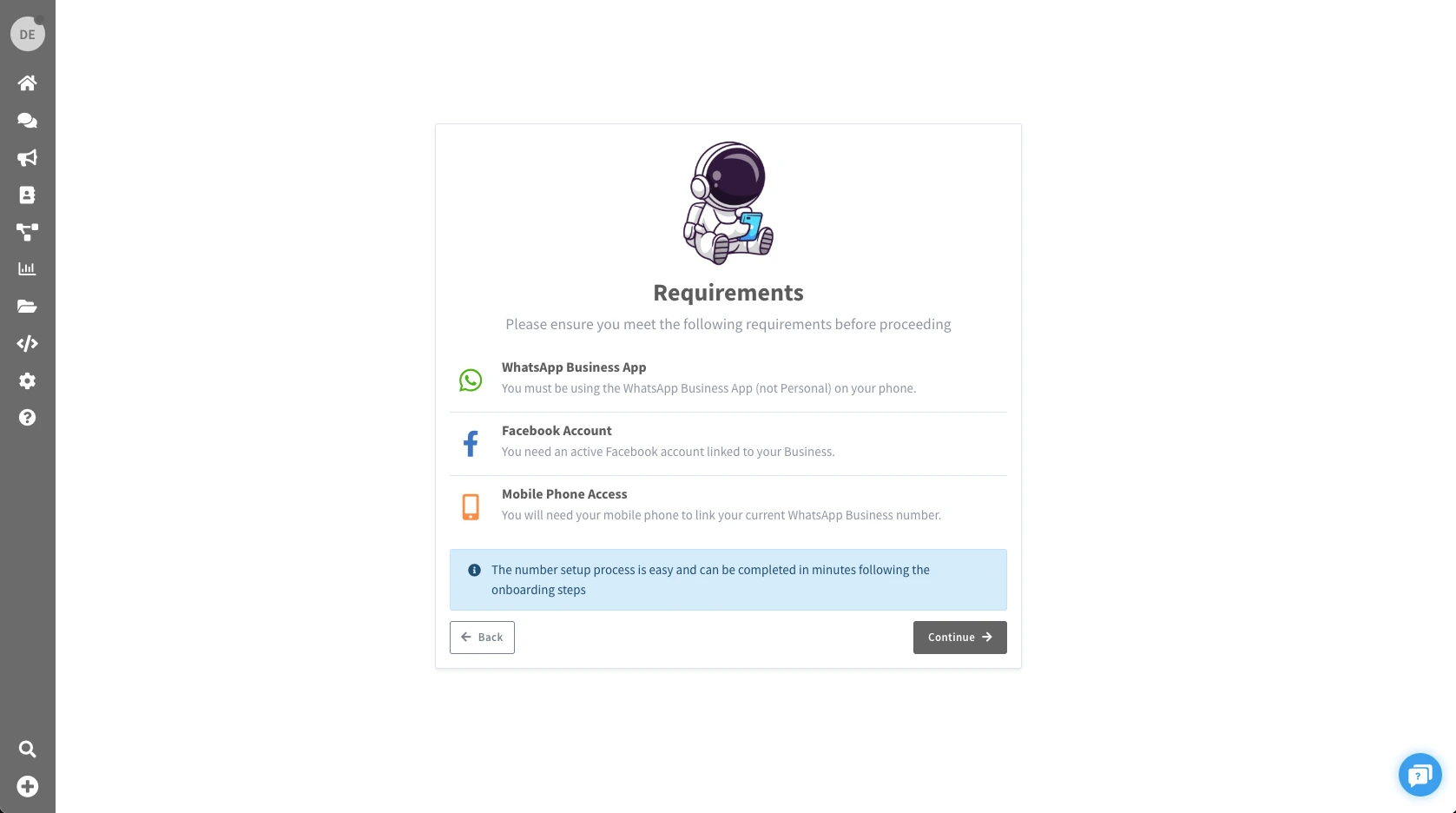
Before starting the migration, ensure you meet the following requirements:
1. WhatsApp Business App
You must be using the WhatsApp Business App (not the personal WhatsApp) on your phone. If you're currently using the personal WhatsApp app, you'll need to migrate to WhatsApp Business first (see the Pre-Migration section below).
2. Facebook Account
You need an active Facebook account linked to your business. This is required for the Meta authentication process.
3. Mobile Phone Access
You will need your mobile phone during the migration to link your current WhatsApp Business number.
Pre-Migration: Personal to Business App
Skip this section if you're already using the WhatsApp Business App.
If you're currently using the personal WhatsApp app, you must first migrate to the WhatsApp Business App before proceeding with the API migration.
Follow these steps to migrate from personal WhatsApp to WhatsApp Business:
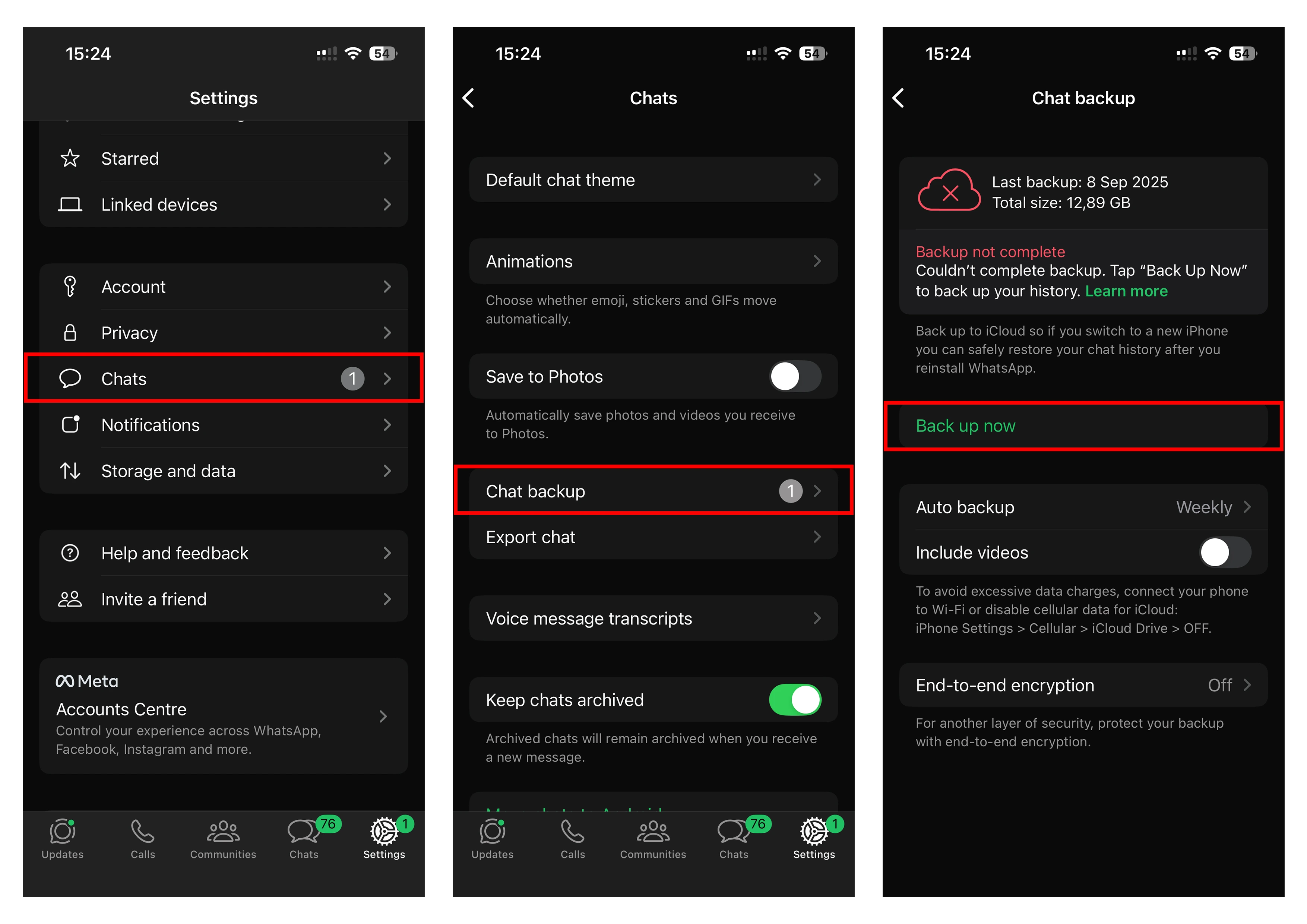
Step 1: Back up your chat history
Open WhatsApp on your phone and create a backup of your chat history:
- Go to Settings → Chats → Chat Backup
- Tap Back Up Now
- Wait for the backup to complete
Step 2: Download WhatsApp Business
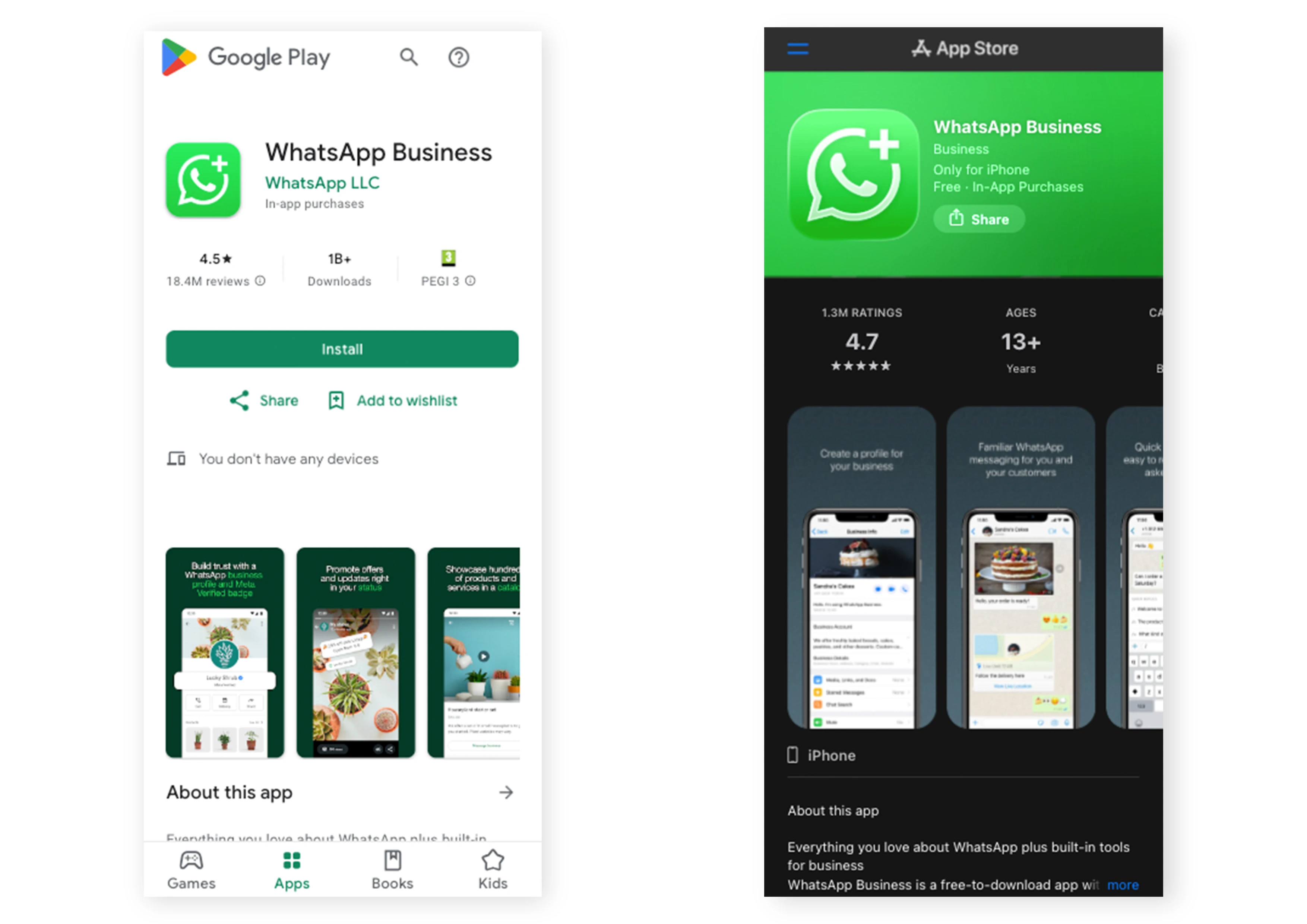
Download the WhatsApp Business app from your device's app store:
Step 3: Verify your number
Open WhatsApp Business and verify your phone number:
- Open the WhatsApp Business app
- Accept the Terms of Service
- Enter your phone number
- Verify with the SMS code
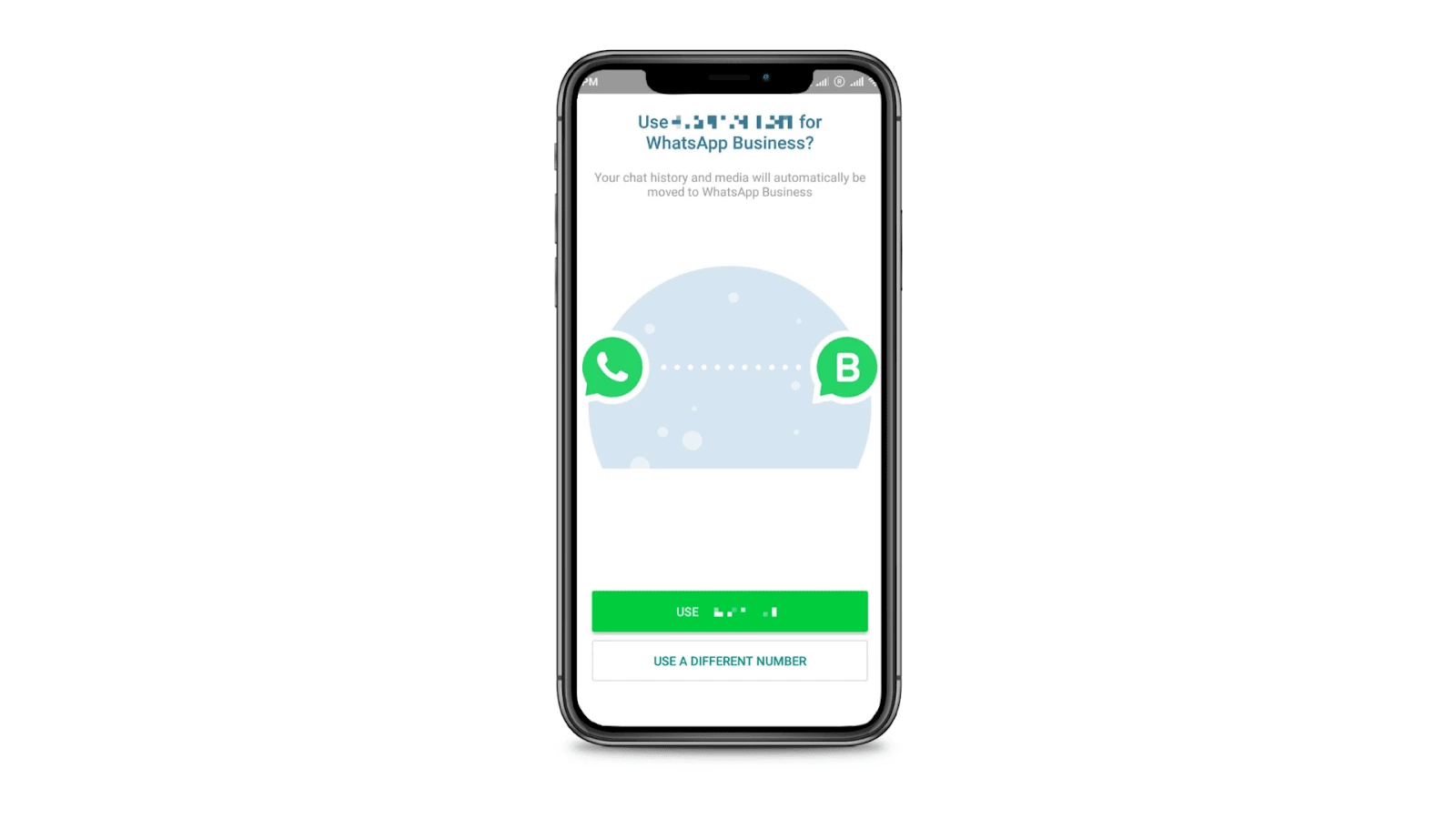
Step 4: Restore your chat backup
When prompted, restore your chat history from the backup you created:
- WhatsApp Business will detect your backup
- Tap Restore to recover your chats
- Wait for the restoration to complete
More Information:
- How to migrate from WhatsApp to WhatsApp Business (WhatsApp FAQ)
- How to backup your chats history (WhatsApp FAQ)
Limitations to Acknowledge
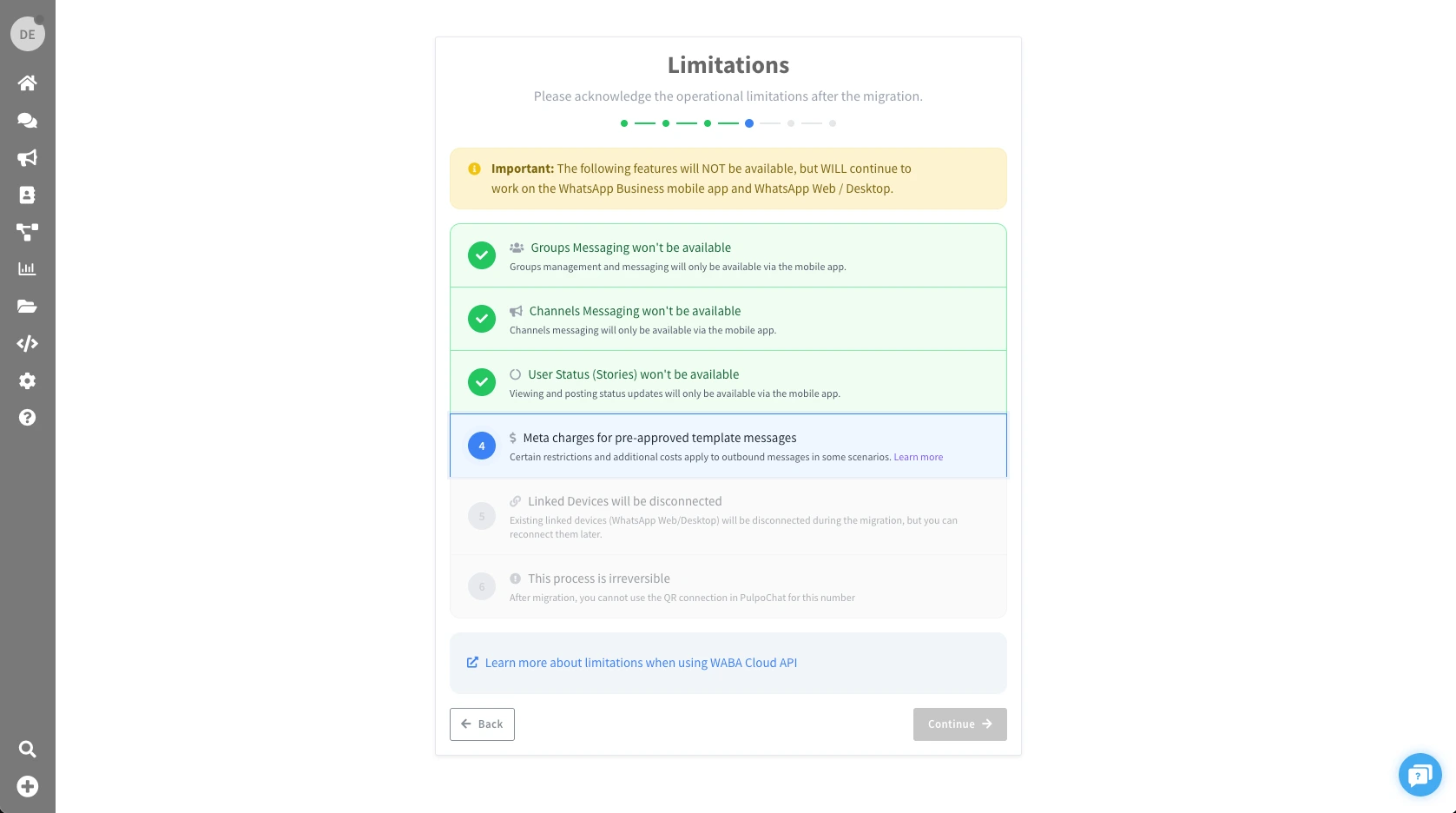
Before proceeding with the migration, it's important to understand the operational limitations. The following features will NOT be available in Textime Chat after migration, but WILL continue to work on the WhatsApp Business mobile app and WhatsApp Web/Desktop.
1. Groups Messaging
Groups management and messaging will only be available via the mobile app. You cannot send or receive group messages through the API.
2. Channels Messaging
WhatsApp Channels messaging will only be available via the mobile app.
3. User Status (Stories)
Viewing and posting status updates will only be available via the mobile app.
4. Meta Message Pricing
On the API, Meta charges your WhatsApp Business Account per message: for the templates you send and, since October 1, 2026, for your replies inside the 24-hour customer service window, after the first 1,000 each month on every number. Messages from a number connected by QR code have no Meta charges.
5. Linked Devices Disconnection
Existing linked devices (WhatsApp Web/Desktop) will be disconnected during the migration. You can reconnect them after the migration is complete.
More Information:
Migration Steps
Once you've confirmed the requirements and acknowledged the limitations, you're ready to start the migration.
Step 1: Start the Migration
Open the migration assistant from the number's page, as explained in Where to Start the Migration, and click "Let's begin".
Step 2: Review Requirements
Confirm that you meet all the requirements and click "Continue".
Step 3: Acknowledge Limitations
Read and acknowledge each limitation by clicking on each item. All limitations must be acknowledged to proceed.
Step 4: Confirm and Start
Review the important notes and click "Start Migration" to begin the Meta Connect process.
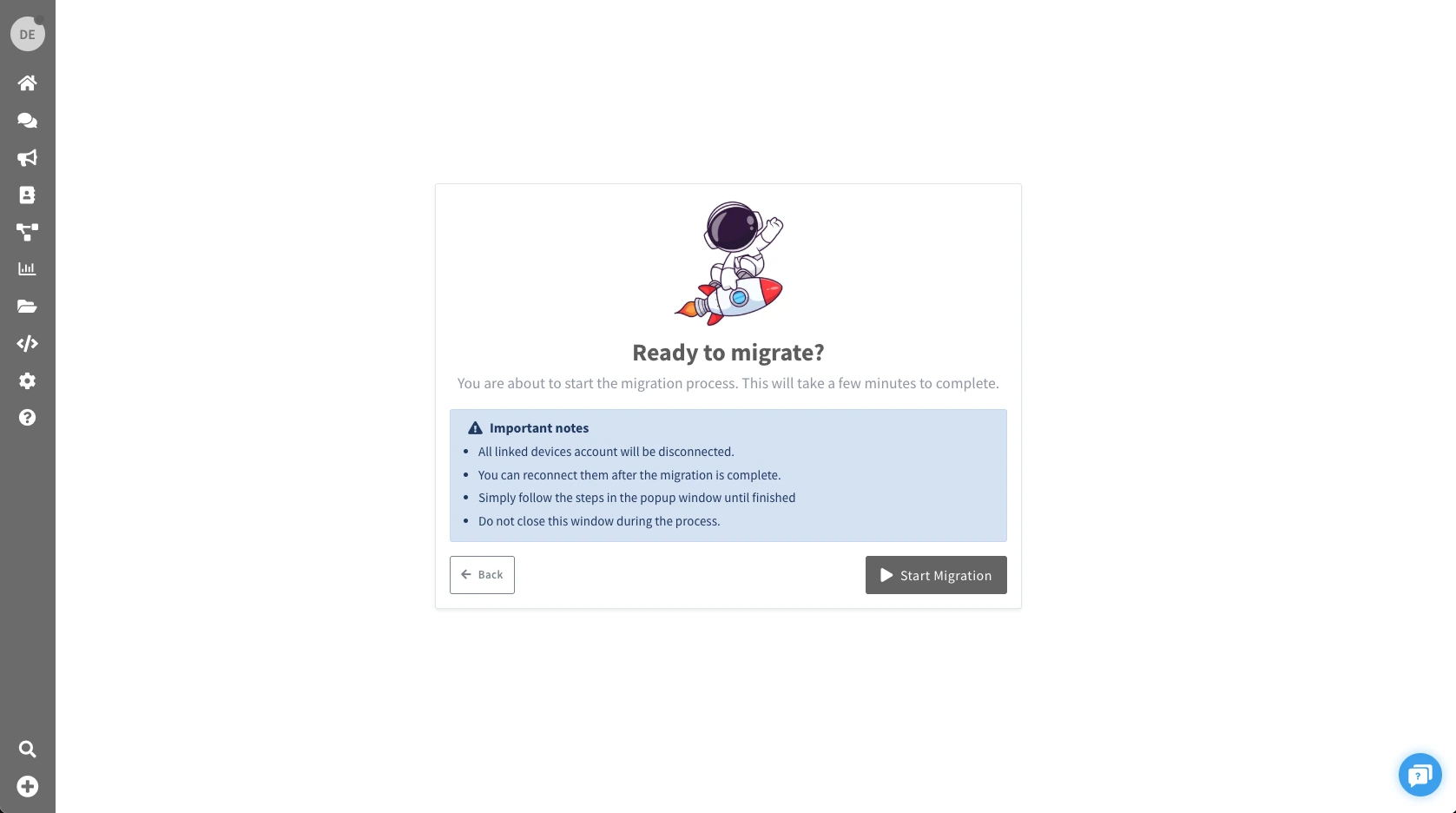
Important notes before starting:
- All linked devices will be disconnected
- You can reconnect them after the migration is complete
- Simply follow the steps in the popup window until finished
- Do not close the window during the process
Step 5: Complete Meta Authentication
A Meta Connect window will appear. Follow the authentication steps:
- Log in with your Facebook account
- Select or create your WhatsApp Business Account
- Choose the phone number to connect
- Complete the verification process
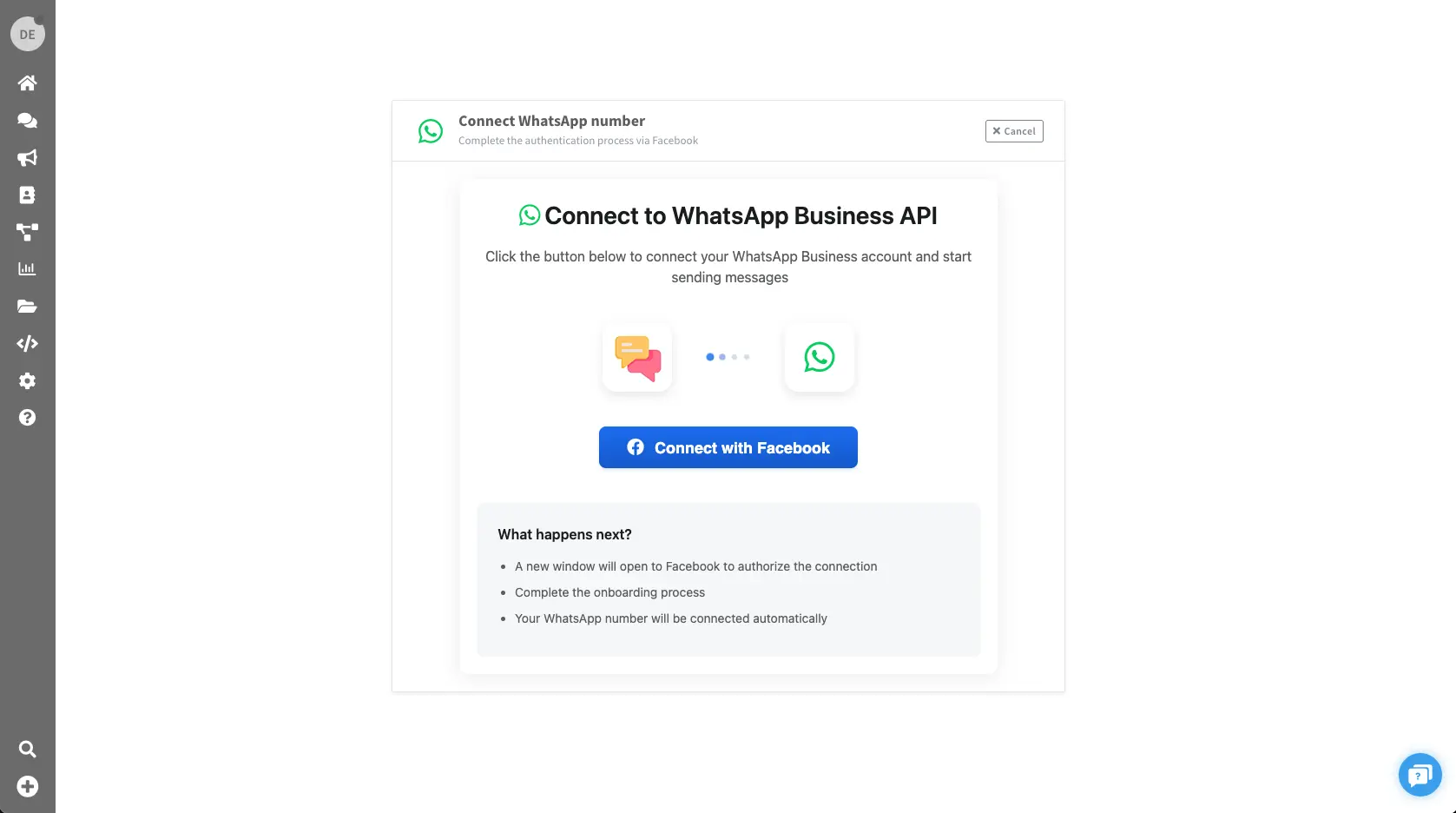
Login into your Facebook account
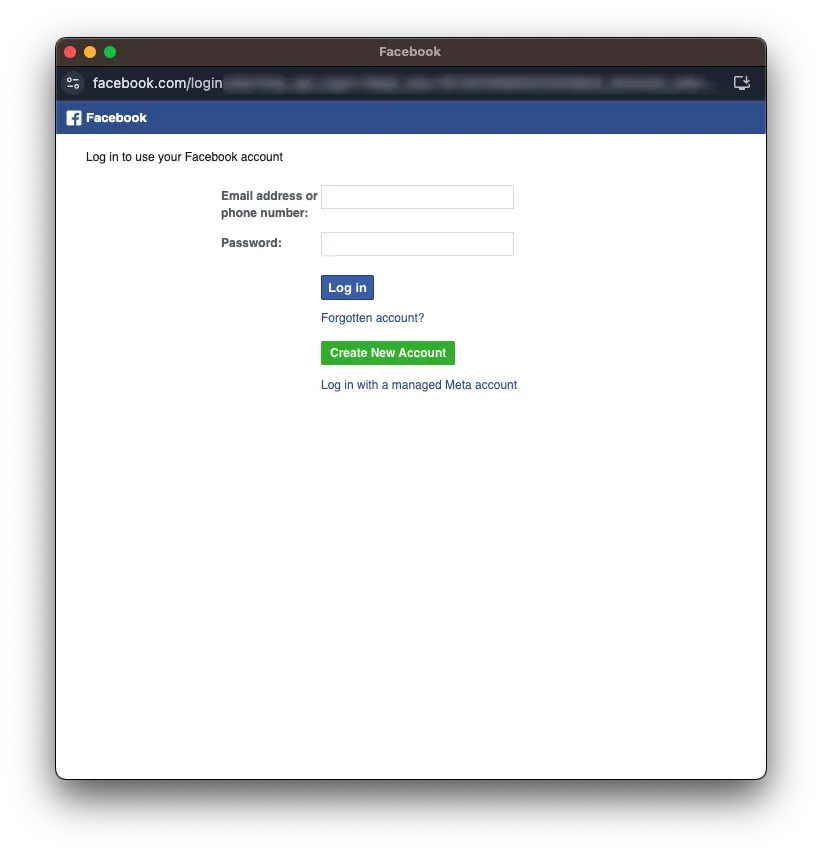
Step 6: Enter Business Information
When prompted, enter your business details:
- Business name: Must match the name on your registration documents (important for future business verification)
- Website: Enter your business website, or select "My business does not have a website" if applicable
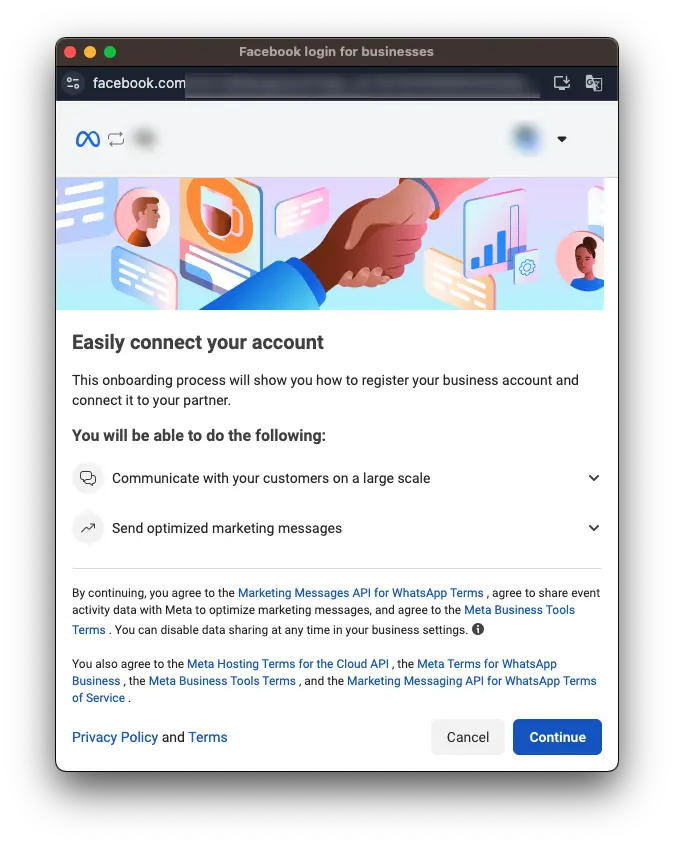
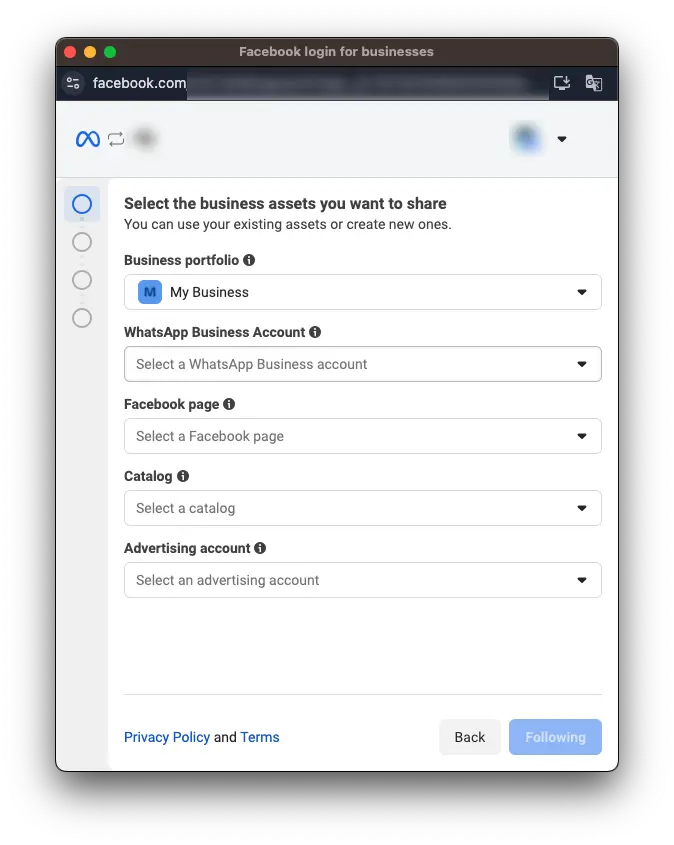
Step 7: Enter your Phone number
When prompted, enter your WhatsApp Business phone number. Select your country code and type your number in the field provided. This step is required to link your number to the WhatsApp Business API.
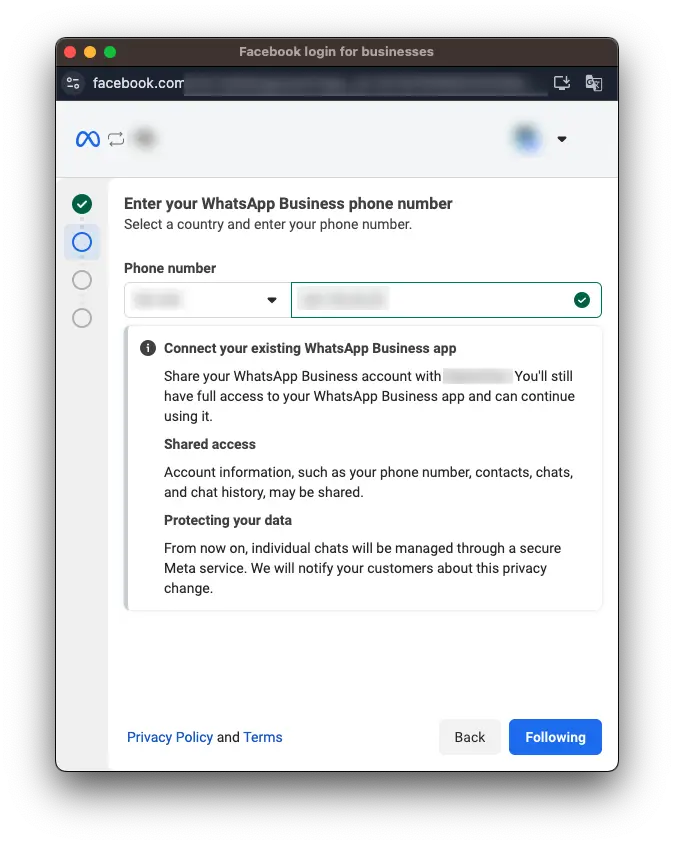
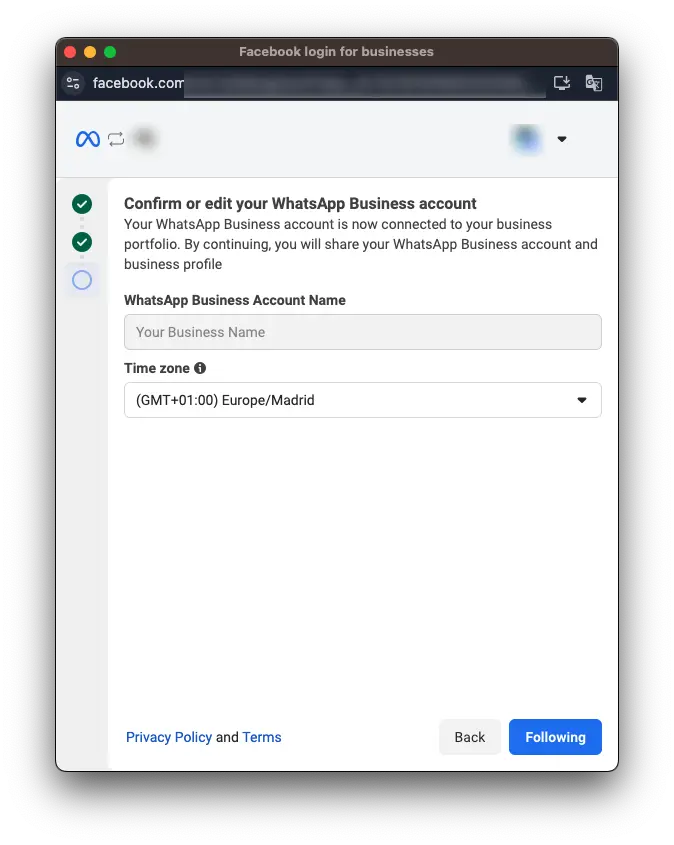
You will also see a message about connecting your existing WhatsApp Business app. This means your account information (such as phone number, contacts, chats, and chat history) may be shared to enable the migration. Your data will be managed securely by Meta.
Click Following to continue.
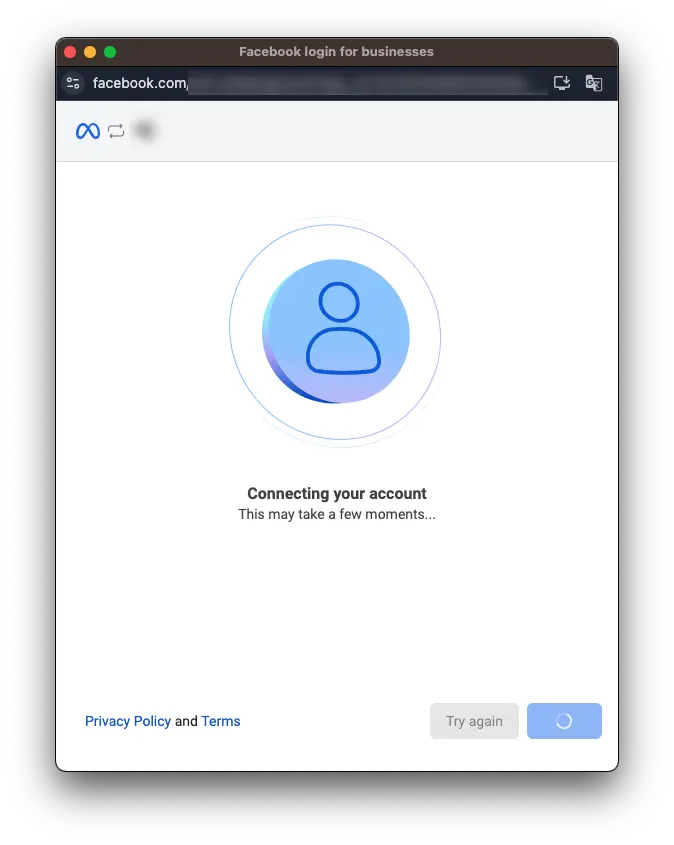
Step 8: Migration Complete
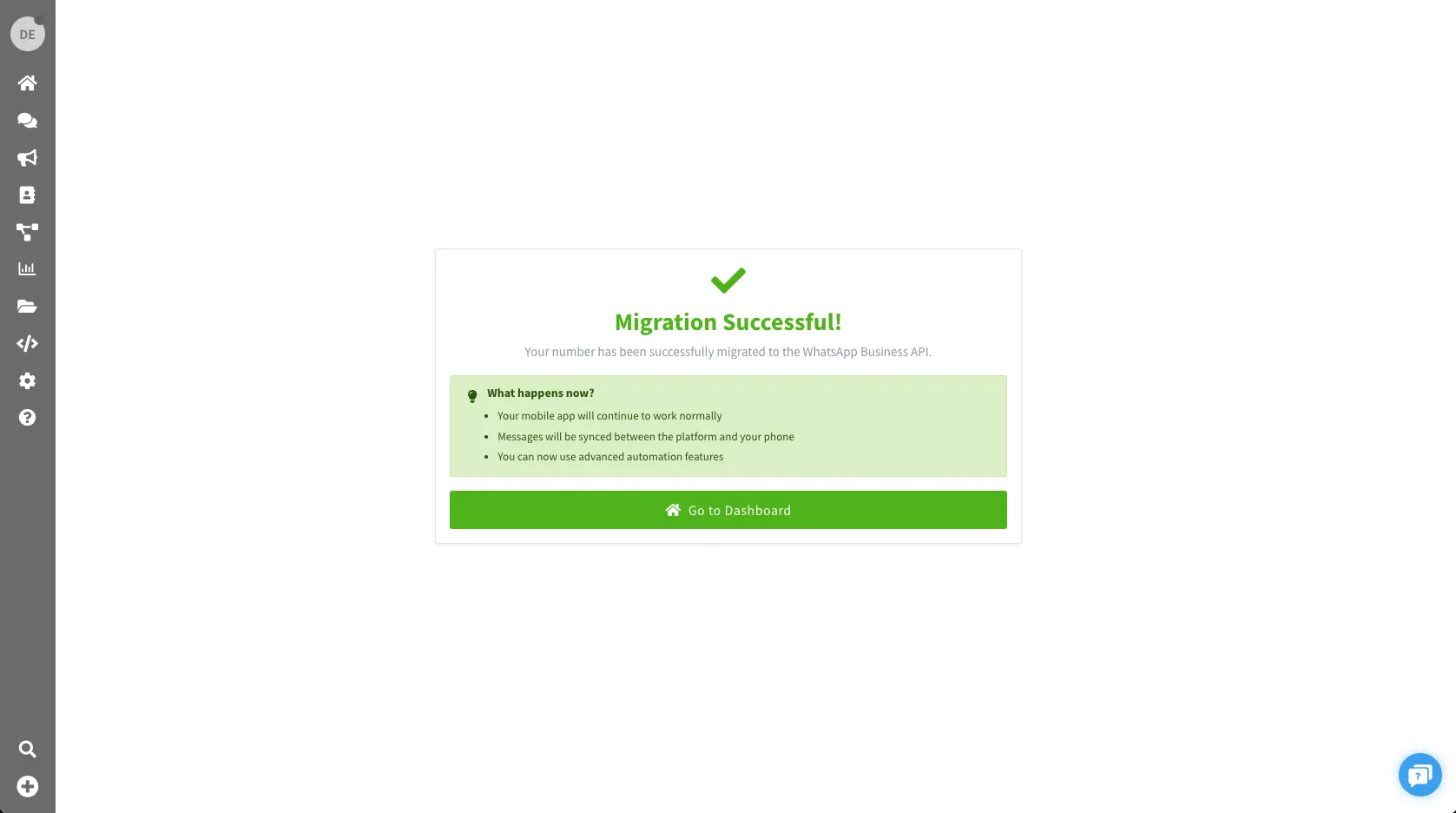
Once the process is complete, you'll see a success confirmation. Your number is now connected to the WhatsApp Business API!
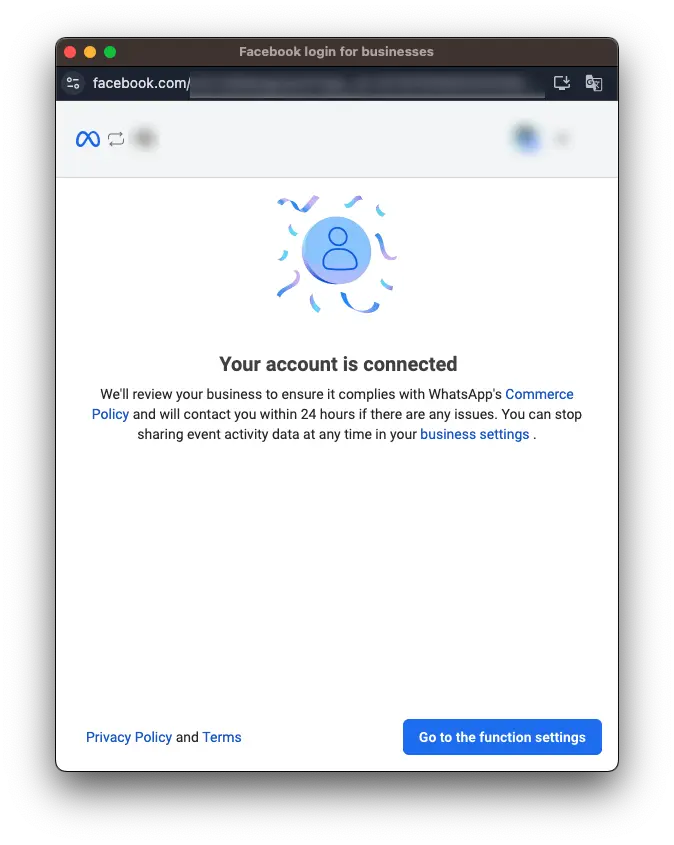
Close the Facebook window and go back to the app window. You will see a sucess message like this:
What Happens After Migration
After successfully migrating your number:
✅ Your mobile app continues to work normally
You can still use the WhatsApp Business app on your phone for one-to-one messaging, groups, channels, and status updates.
✅ Messages are synchronized
Messages are synced between the platform and your phone. Messages sent via the API appear in your WhatsApp Business App, and messages received on your phone appear in the app
✅ Message templates
The number can send message templates approved by Meta. Outside the 24-hour customer service window, a template is the only way to write to a contact first.
⚠️ Reconnect linked devices
If you had WhatsApp Web or Desktop connected, you'll need to reconnect them:
- Open WhatsApp Business on your phone
- Go to Settings → Linked Devices
- Tap Link a Device
- Scan the QR code on WhatsApp Web/Desktop
Troubleshooting
Disconnect from a Previous WABA Provider
If your number is already connected to another Business Solution Provider (BSP), you must disconnect it before migrating to Textime Chat. WhatsApp does not support using the same phone number across multiple integrations simultaneously.
For numbers using Coexistence (WhatsApp Business App + Cloud API)
You need to disconnect from both Meta Business Suite and the WhatsApp Business App:
Step 1: Remove access in Meta Business Suite
- Log in to Meta Business Suite using your business credentials
- Click on Settings (usually located in the bottom left corner)
- Under the Accounts section, click on WhatsApp accounts
- Select the WhatsApp Business App in question and open the Partners tab
- Click Manage next to your current BSP
- In the pop-up window, click Remove access
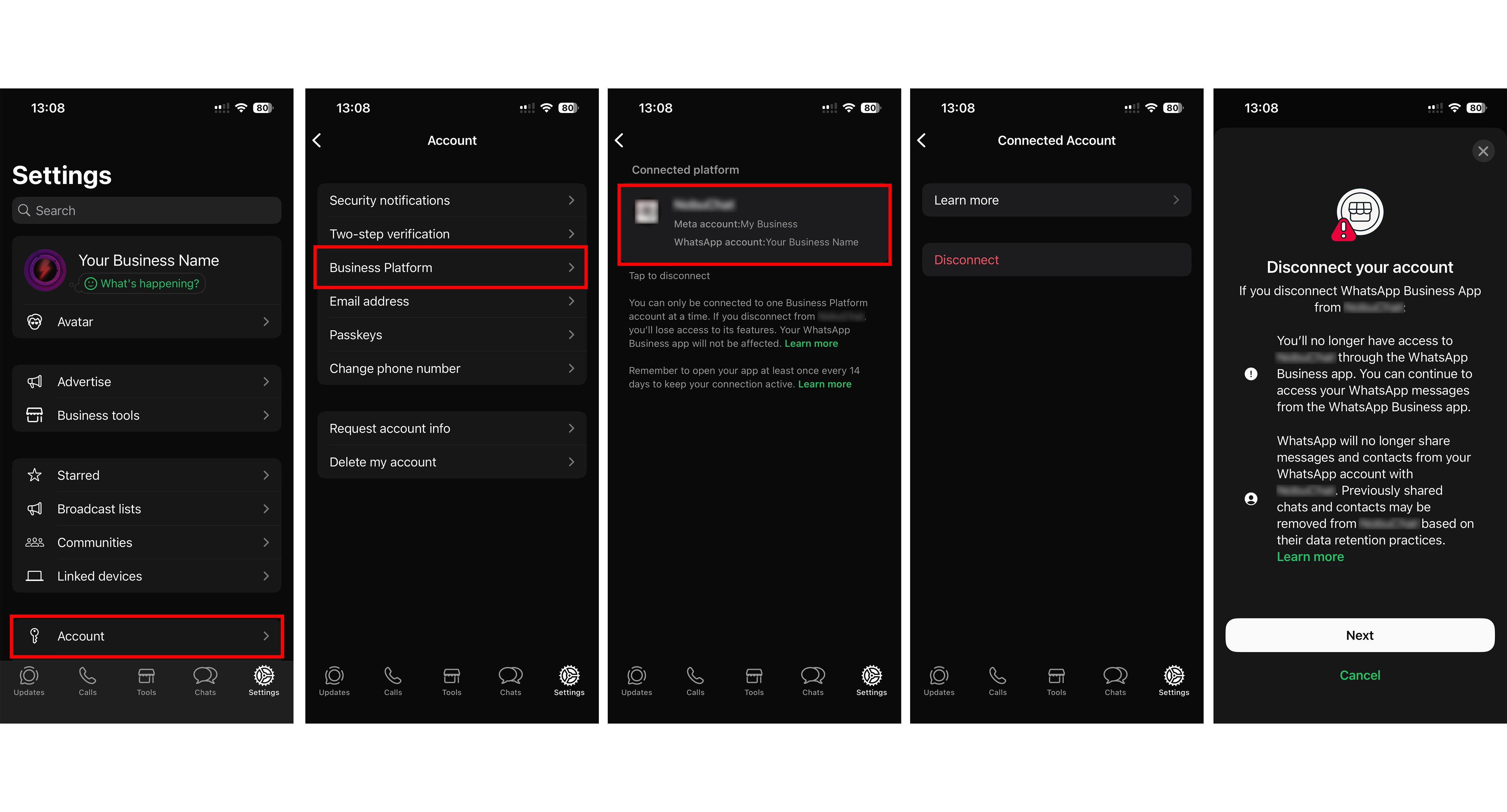
Step 2: Disconnect from the WhatsApp Business App
- Open the WhatsApp Business App on your phone
- Go to Settings → Account → Business platform
- Tap on the partner/provider you want to disconnect
- Select Disconnect
For numbers registered exclusively for Cloud API (non-coexistence)
If your number was registered only for Cloud API without the WhatsApp Business App:
- Log in to Meta Business Suite using your business credentials
- Click on Settings (usually located in the bottom left corner)
- Under the Accounts section, click on WhatsApp accounts
- Select the WABA associated with the number you want to delete
- Click WhatsApp Manager
- Locate the number you wish to remove and click the trash can icon to delete it
Migration failed or timed out
If the migration fails or times out:
- Ensure you have a stable internet connection
- Check that your Facebook account is in good standing
- Verify that your WhatsApp Business App is up to date
- Try again from the beginning
Messages not syncing
If messages aren't appearing in both places:
- Ensure synchronization has completed
- Check that you shared conversation history during setup
- Remember that media older than 14 days cannot be synchronized
- New messages should sync automatically
Can't find the migration option
The option is Change connection, in the ⚙️ Actions menu of a number connected by QR code (see Where to Start the Migration). Check that:
- Your role is account owner or administrator: no other role can open the migration assistant.
- Your account can use both connection types, QR code and WhatsApp Business API: otherwise the option doesn't appear.
If both are true and the option still isn't there, contact support.
Frequently Asked Questions
Can I go back to QR code connection after migrating?
Yes. On the number's page, click the ⚙️ Actions icon and choose Change connection: it opens the switch back to a QR connection. Messages stop until you scan the QR code with the WhatsApp Business app on your phone. As with the migration, only the account owner and administrators can do it. Back on QR, groups and channels work in Textime Chat again, and message templates are no longer available.
Will I lose my contacts?
No. Your contacts remain on your phone and in the WhatsApp Business App. Contacts that have been synced to Textime Chat will also be preserved.
How long does the migration take?
The migration process typically takes 5-10 minutes. Message synchronization may take longer depending on your chat history size.
Is this available in all countries?
The Coexistence feature is not available for businesses in Nigeria and South Africa (as identified by the Business App phone number).
What about message throughput?
Numbers using Coexistence have a fixed throughput of 20 messages per second to remain compatible with the WhatsApp Business app.
Related Articles
- Coexistence with WhatsApp Business API - Learn more about how the mobile app and API work together
- WhatsApp Business API Pricing Guide - Understand messaging costs
- Messaging Costs Calculator - Calculate your estimated costs
Need Help?
If you encounter any issues during the migration process or have questions, please contact our support team for assistance.