

A web form asks a customer several questions at once, with one short link. You send the link in a WhatsApp chat. The customer opens it on their phone, fills in a short page with your logo and taps Send. The answers come back to the conversation, to the contact and to your integrations.
Each link belongs to one chat. When the answers arrive, Textime Chat already knows who answered, on which number, and which agent sent the form. Nobody retypes anything.
What you need
- A plan with web forms. A number on the Professional, Business or Enterprise plan. A number on a free trial can publish 2 forms and receive 50 submissions a month.
- Any WhatsApp number. It can be connected with a QR code or to the WhatsApp Business API. Meta does not review your forms.
- A computer to build forms. On a phone you can only open the submissions.
- The right role:
- The owner, admins and supervisors create, edit and publish forms.
- Agents send published forms in the chats they can open, and see the answers in those chats, except the ones marked sensitive.
- Only the owner and admins open the Submissions list, export it and delete answers. The answers are your customers' personal data.
Web forms or WhatsApp Forms?
The console has two kinds of forms, and they are easy to mix up.
| Web forms | WhatsApp Forms | |
|---|---|---|
| Where the customer answers | A web page that opens from a link, in any browser | Inside the WhatsApp app, on the phone only |
| Numbers | Every number: connected with a QR code or to the WhatsApp Business API | Only official numbers whose business Meta has verified |
| Where you build them | Forms, in the side menu | WhatsApp Forms, in the settings of an official number |
| What they add | Steps and questions that show or hide with the answers, appointment times from your opening hours, a page with your logo and colour | The customer answers without leaving WhatsApp |
This page covers web forms. For the other kind, see WhatsApp Forms. Meta calls those WhatsApp Flows.
Example: a hair salon takes bookings in the chat
Say you run a hair salon. Customers write on WhatsApp to ask for an appointment, and your team goes back and forth about the service, the day and the time. A booking form asks for all of it with one link, and the customer only sees the times that are still free.
- Check your opening hours. The times come from the opening hours of the number that sends the form, in its time zone. Set them in the number's settings, or choose Custom hours on the question later. If the number has no opening hours, the form offers the template's own hours instead: Monday to Friday 9:00-13:00 and 15:00-19:00, and Saturday 10:00-14:00. The question lists them under "No number has opening hours yet". Set your hours before you publish.
- Start from the template. Click Forms in the side menu, open the Templates tab and click Use template on Appointment booking.
- Make it yours. Click the first question and change its options to your services, such as Haircut, Colour, and Haircut and colour. Click the question When would you like to come? and set Each appointment to the time a visit takes. The template offers 30-minute appointments, booked at least 2 hours and at most 3 weeks ahead. Change this with Notice needed and Bookable up to, and add your holidays under Closed dates. The template already asks for the customer's name, filled in from the contact, and for notes. If no time suits a customer, they can say so and write the times they prefer.
- Choose where the answers go. In Save to CRM, save the name on the contact with Fill if empty. Under Labels, add a label such as Booking to the chat. Only labels that already exist on the number are added, so create it there first.
- Confirm in the chat. In Settings, turn on Send a confirmation message from the number and write the text, for example "Thanks! See you soon."
- Publish and test. Click Publish the form, then go through the checklist in Test before you send below.
- Send it. When a customer asks for an appointment, type /form in the message box, pick the form and send the message.
The customer opens the link, picks a service and a free time, checks their name and taps the button. In the chat your team sees a card with the answers and the label, and the link shows Answered in the Forms block. Nobody else is offered that time on this number. If the customer asks to change it later, open the submission, click Cancel booking and send the form again.
1. Create a form
- Click Forms in the side menu.
- Click New form. Give it a name and choose the language of the form. Only your team sees the name. Customers see the form's title.
- Click Create form.
To start from a ready-made form instead, open the Templates tab, pick a language and click Use template. There are templates for leads, client details, appointment and table bookings, delivery addresses, orders, quotes, surveys, support requests and event sign-ups.
The form opens in the builder. The builder saves every change by itself, and the line next to the buttons tells you when. Undo takes back the last change. The builder needs a computer: on a phone you can only open the form's submissions.
On the right, the preview shows the page as your customer will see it. Below it, choose a number in Appearance of to see the page with that number's logo and colour.
2. Add questions
A form has steps, and each step has questions. Each step is one screen for the customer.
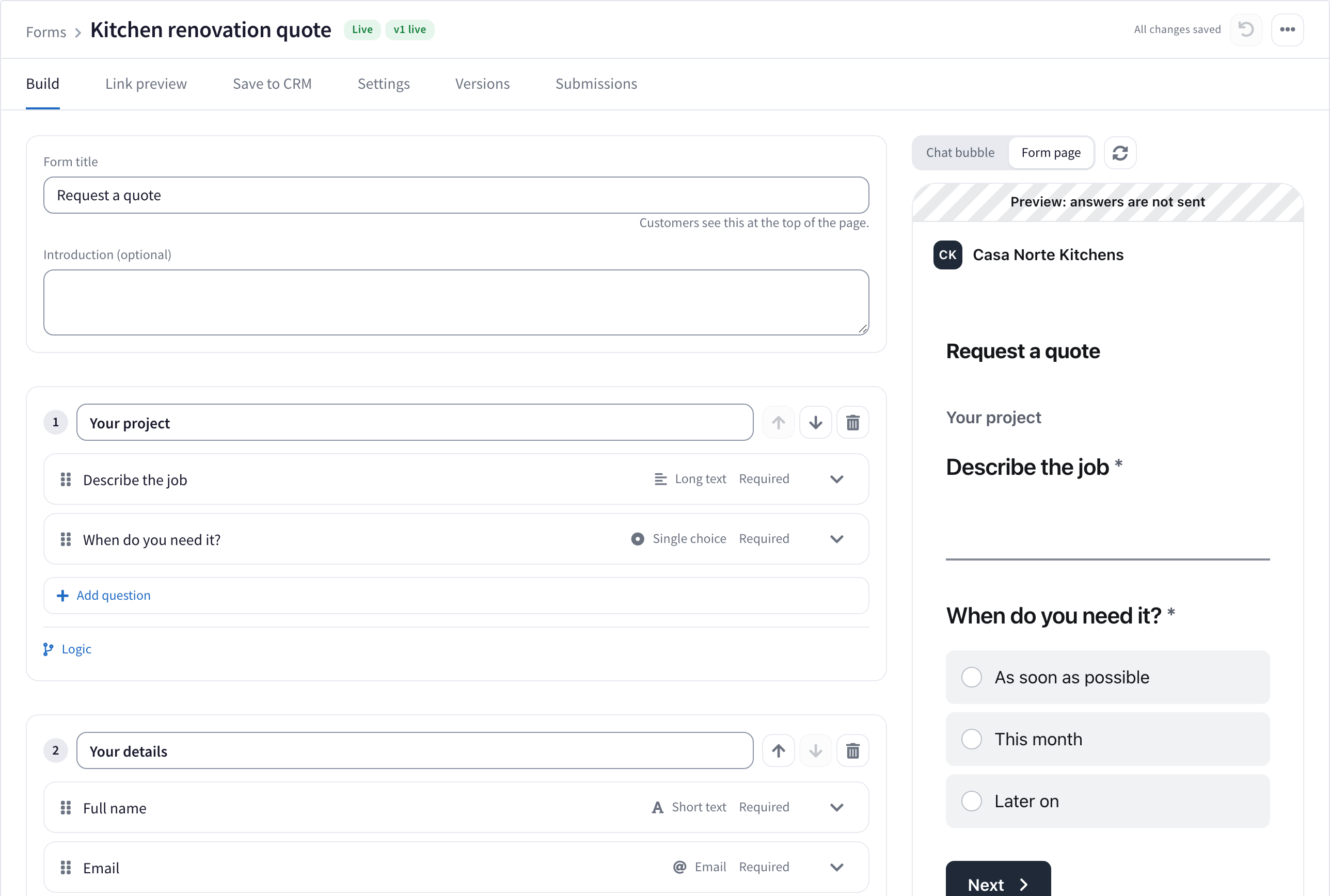
- Add question opens the list of question types.
- Add step adds a new screen at the end. Move steps with the arrows on their header.
- Drag a question by its handle to move it, also into another step.
The question types:
- Text: Short text, Long text, Email, Phone, Website and Number.
- Choice: Single choice, Multiple choice, Dropdown, and Yes or no.
- Date and time: Date, Time and Appointment time.
- Opinion: Rating (stars, hearts or a number scale) and Scale (for example from 0 to 10).
- Other: Consent (a box to tick, with a link to your terms) and Text block, which shows text and asks nothing.
Click a question to open its settings:
- The question, a help text and a placeholder.
- Required answer, so the form cannot be sent without it.
- Answer limits, by type: how many characters, the lowest and highest number, the earliest and latest date, the open days, how many options can be ticked.
- For choice questions, the options. Paste a list to add one option per line, add an Other answer, shuffle the order for each customer, or give each option a score. Load from a URL reads a list from your own server once and saves it as the options, so customers never wait for your server. When your list changes, click Refresh options and publish again.
- Sensitive, under More settings. The answer is left out of notifications, webhooks and the contact. Only the owner and admins see it, in the chat, in the submissions and in exports. The rest of the team sees Hidden for your role.
- Fill in automatically. The answer is filled in for the customer from the contact (name, email, company, city or a custom field), from the agent who sent the link, or from a value sent with the link. You choose whether the customer can change it, and whether to skip the question when the value is known.
- Answer key. The name that webhooks, exports and automations use for the answer. If you rename it after publishing, update your integrations.
Appointment times
With an Appointment time question the customer picks a free time. The times come from the opening hours of the number that sends the form, in its time zone. You can also set your own hours, how long each appointment lasts, how much notice you need, how far ahead customers can book, and the dates you are closed.
Each time can be booked once on each number. When a customer picks it, no one else is offered it on links from that number. With Custom hours, the form has one calendar for all numbers. To free a time, cancel the booking from its submission (see Submissions below).
3. Rules, jumps and checks
A form can change with the answers. You do not write any code.
- Show this question. At the bottom of a question, choose when it shows. For example, only when the answer to "Do you have a pet?" is Yes. A rule uses the answers to earlier questions.
- Show this step. Open Logic under a step to show the whole step only when a rule is true.
- Jumps. In Logic, under After this step, send customers to a later step or straight to an ending, depending on their answers. Without a jump, they go to the next step.
- Checks. In a question's Checks, add a rule the answer must meet and the message the customer sees when it does not. The form cannot be sent until the answer is fixed.
Below the steps:
- Endings are what customers see after they send the form: a title, a text and an optional button with a link. A rule picks which ending shows. The default ending shows when no other one applies.
- Hidden fields are values saved with the answers that customers never see: an order number sent with the link, a contact custom field, the contact's name or the agent who sent the link.
- Calculated values work out a total score, a category or a price from the answers. You can use them in rules, endings and the contact.
5. Share
The Share tab lists the ways to get the form to customers, the most common first:
- Send it from a chat. Open a customer's chat and choose Send form in the reply box menu: each customer gets their own link. Until the form is published, the tab asks you to publish it first. Section 9 has the other ways to send it.
- Public link. On the Business and Enterprise plans: a link anyone can open from an ad, a bio link or your website, with a QR code to print. You choose its address and the number that receives the answers. After answering, the person is sent to WhatsApp with a reference code, and the answers reach their chat when they send it within 72 hours. A public link cannot book appointment times.
- Link card in WhatsApp. WhatsApp shows a card under each link, and you choose its title, description and image. By default the image uses the number's colour and logo with the form's title. You can upload your own PNG or JPEG instead. The business name and logo on the card come from the number that sends the link.
6. Save to CRM
In the Save to CRM tab you decide what happens with the answers:
- Save answers on the contact. For each question, choose a contact field: name, surname, email, other phone, birthday, company, job title, company website, address, city, postal code, country, or a custom field. Then choose Fill if empty or Always overwrite. Sensitive answers are never saved.
- Labels to add to the contact and to the chat when the answers arrive. Only labels that already exist on the number are added.
- Show the answers in the chat. Your team sees a card with the answers in the conversation. Customers never see it. The card is added only when that chat already exists on the number.
7. Settings
The Settings tab has the rest. Applies now marks what changes at once. Live when you publish marks what reaches customers with the next publish.
- Numbers that can send it. Leave Any number on, or tick only some numbers. The form is not offered on the others.
- A link stays open for a time from 1 hour to 30 days. The default is 7 days.
- After sending: One answer per link, Allow changes after sending (the customer opens the link again and updates the answers) or Allow several answers.
- Fill in what we already know about the contact.
- Offer to go back to WhatsApp, with a message ready to send in the chat.
- Send a confirmation message from the number. The text you write goes to the customer in the chat when the answers arrive.
- The language of the form, the text of the send button, the progress shown (a bar, step numbers or nothing), whether customers can go back to earlier steps, and a welcome screen.
- Limits: Close the form on a date and time, Stop after this many answers, and One answer per contact. Once you publish, they apply to every link of the form, including the ones already sent.
8. Publish
Click Publish the form. If something is missing, the builder lists what to fix first. If you changed or removed answers that integrations read, it lists them and asks you to confirm.
Each publish freezes a version:
- New links get the new version. Links already sent keep the version they were sent with.
- You can keep editing. Changes go live when you publish again. Discard unpublished changes takes the draft back to the live version.
- The Versions tab lists every published version, who published it and how it differs from your draft.
From the ... menu you can also:
- Duplicate the form.
- Archive it. No new links can be sent, and links already sent show that the form is not available. Its submissions and versions stay. Restore brings it back as a draft.
- Delete it, for good. Only drafts and archived forms can be deleted. If the form has submissions, you are asked to delete them too.
Test before you send
Fill in the form yourself once before your customers get it:
- Click through the preview, step by step. Try the answers that show or hide questions, and reach every ending.
- In Appearance of, choose each number that will send the form and check its name, logo and colour. Switch the preview to Chat bubble to see the message and the link card your customers get.
- In Settings, check Numbers that can send it and how long a link stays open.
- From your own phone, send a message to the business number. That gives you a chat to test in. Send the published form in that chat.
- Fill it in on your phone and send it. Check that the card with the answers shows in the chat, that the contact fields and labels were saved, and that the link shows Answered in the Forms block.
- On a booking form, check the times you are offered and their time zone. Then cancel your test booking with Cancel booking, so the time is free again.
- On an official number, if you may send the form more than 24 hours after a customer's last message, create the form link template now (see Campaigns and automatic replies). WhatsApp has to approve it first.
9. Send it
From a chat
- In the message box, click + and choose Send form, or type /form. Pick a published form. When you send the message, the link is added to it. Drafts show in the list, but you must publish them first.
- Or open the Forms block in the contact panel on the right and click Send a form.
On an official number, WhatsApp lets you write freely only within 24 hours of the customer's last message. After that, the form goes out with your form link template: a template approved by WhatsApp with a button that opens the form. You create it once, from a campaign (see below).
The Forms block in the chat
The Forms block in the contact panel lists the forms sent in that chat in the last 30 days, newest first. Show older links lists the ones before. While the block is closed, its header shows how many links there are and how many still take answers. The block opens on its own when a link still takes answers or an answer came in the last 24 hours, unless you closed it in that chat.
Each link shows its state: Sent, Opened, Viewing now (the customer has the page open), In progress, Answered (the customer sent the answers), Expired or Revoked. A link made with Copy a new link shows Link copied until the customer opens it, and one made through the API, with no message from the chat, shows Link created. While the message with the link is on its way it shows Sending, Scheduled when the message is set to go out later, and Not delivered, in red, when it has still not gone out two minutes later. While a link takes answers, its line says how many (one answer, one answer that can be edited, or several answers) and when it closes.
Click a link to see what happened to it and when: sent, opened (and how many times), started and answered, and who or what sent it. Links with answers show the latest ones. From there you can:
- View answers, to open the latest answers next to the chat.
- Extend a link that is still open, or Reopen one that has expired, choosing how long it stays open, from 1 hour to 30 days. The link in the chat keeps working, or works again.
- Copy a new link to paste it yourself. It opens the form for this chat only. If the link you copied before has not been opened yet, that same link is copied again.
- Send again, to send the form once more after a link was answered, expired or was revoked.
- Revoke a link, and confirm it in the same place. The customer can no longer open it. Answers already sent stay.
- Preview as customer, to open the page as the customer sees it.
Campaigns and automatic replies
In a campaign, and in the welcome, away and busy automatic replies, tick Send a web form link. Choose a published form and, in Each link stays open, 24 or 72 hours, 7 or 30 days, or the form's default. Every recipient gets a link of their own. It goes where the message says {{form.url}}, or at the end.
A campaign on an official number sends a template. The template needs a URL button that opens the form, or a {{form_url}} variable in its text. If you do not have one yet, click Create the form link template. WhatsApp reviews it, and you choose it in the campaign once it is approved.
You can also put a form link in any template you write. Open Templates and click Create template. Under Buttons, click Form link: it adds a button that opens the form, with nothing to type. To put the link in the message text instead, click Insert form link in text under the text. WhatsApp approves the template once. You choose the form each time you send it, so one template serves all your forms, and every recipient gets a link of their own.
What the customer sees
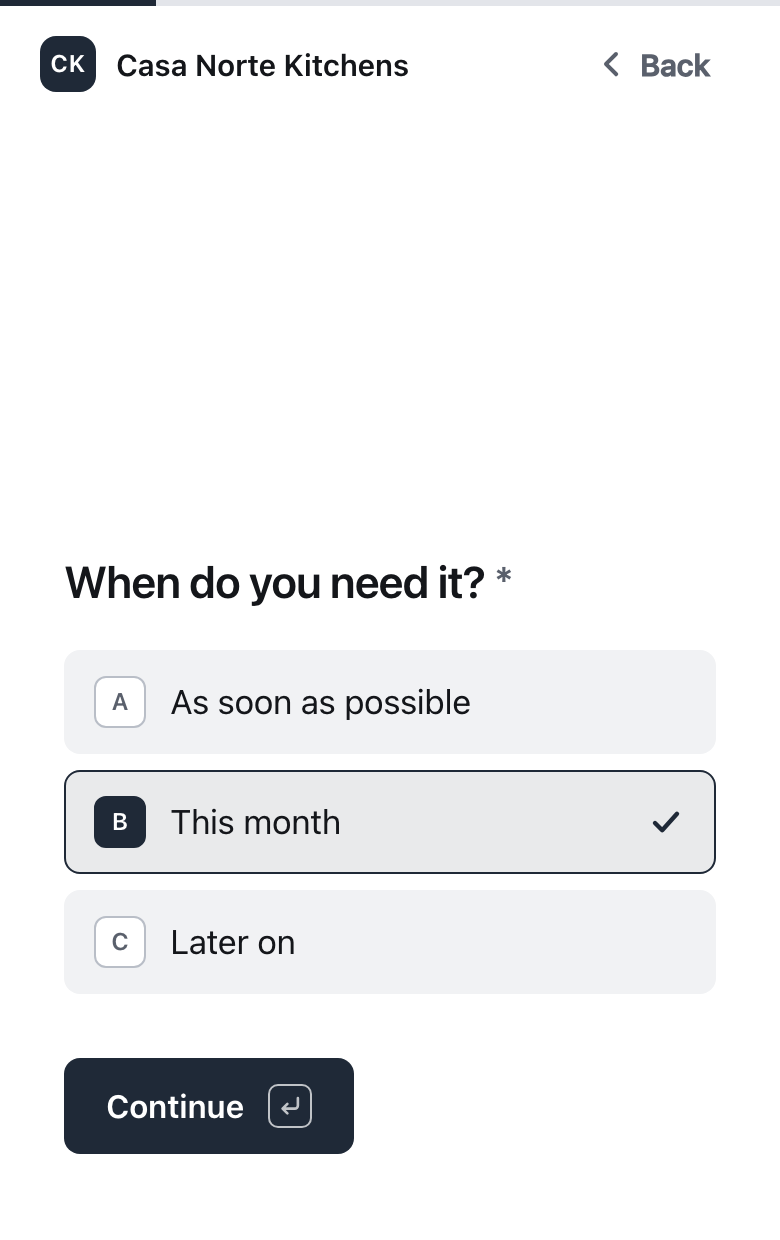
The customer taps the link and the page opens in their browser. It shows your business name, logo and colour, in the language of the form. It does not show Textime Chat. The customer goes through the steps, sends the form and sees your ending, with a button back to the WhatsApp chat.
If the link cannot be used, the page says why:
- Already answered: "We already have your answers", unless the form allows changes or several answers.
- Expired: one tap opens the chat with a message asking you for a new link.
- Revoked: the link is no longer active.
- Closed or full: the form is no longer taking answers.
Where the answers land
A few seconds after the customer sends the form:
- The chat gets a card with the answers that only your team sees, when the chat exists on the number and Show the answers in the chat is on.
- The contact gets the answers you chose in Save to CRM. With Fill if empty, a field that already has a value keeps it.
- The labels you chose in Save to CRM are added.
- The inbox: the chat is marked unread, and reopens if it was resolved or archived. By default this happens for the links your team shares from a chat. Change it in Save to CRM, under Bring the chat back to the inbox.
- The Forms block of the chat shows the link as answered, and the answers join the submission lists below.
- Your other systems, if you connected them, get the answers within about a minute.
Submissions
Every set of answers is saved as a submission. You find them in three places:
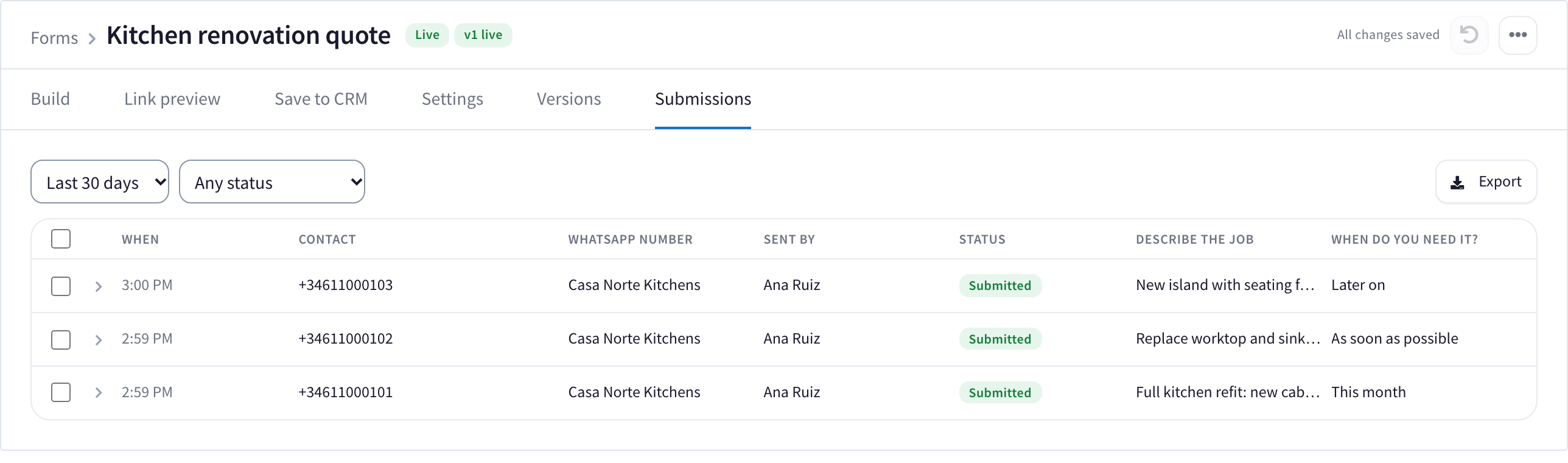
- Forms › Submissions, for every form, or the Submissions tab of one form.
- The Forms tab of the contact's profile.
- The Forms block of the chat, and All submissions from there.
In the list you can:
- Filter by form, period (last 7, 30 or 90 days, or all time), number and status: Submitted, Needs retry, Waiting for chat or Booking cancelled.
- Export to CSV or JSON everything the filters match, up to the latest 10,000 submissions, or only the ones you select. Sensitive answers are included, since only the owner and admins can export.
- Delete one submission or the selected ones. Their cards in the chat go too. Contact fields already saved from them stay.
- Delete this contact's submissions to every form, when a customer asks you to erase their data. It also deletes the contact's WhatsApp Forms responses, clears the contact fields the forms filled in, unless they changed since, and removes the cards in the chats. This cannot be undone.
- Cancel booking on a submission with an appointment time. The time is offered to other customers again. You can tell the customer in the chat, with a message you can edit.
- Retry a submission marked Needs retry, when one of the steps after it, such as saving the contact, did not finish.
Deleting cannot be undone.
Forms appearance of each number
The page takes its look from the number that sends the link. To change it, open the number's settings and click Web forms › Appearance. It starts with the number's WhatsApp profile, and you can change:
- The name and description of your business.
- The logo: a PNG or JPEG of up to 1 MB and at least 96×96 pixels, or your WhatsApp photo.
- The accent colour of buttons and links.
- A footer, and links to your privacy policy, terms and website.
The preview on the right shows the page in light and dark mode. The appearance applies to every web form sent from that number.
Limits by plan
Web forms come with the Professional, Business and Enterprise plans. On other plans, Forms in the side menu shows the plans instead.
| Plan | Published forms | Submissions a month | Public links |
|---|---|---|---|
| Professional | 3 | 300 | None |
| Business | 20 | 3,000 | 3 |
| Enterprise | No limit | 15,000 | 25 |
| A number on a free trial | 2 | 50 | None |
- The limits are for the whole account and follow the best plan among your numbers. They are not added up per number.
- Drafts and archived forms do not count. At the limit, archive a form or upgrade to publish another one.
- Submissions are counted per calendar month. When you reach the limit, links already sent still take answers, but no new links can be sent until the next month or an upgrade.
- Public links count while they are on. A public link needs a number that is not on a free trial and has a privacy policy link in Web forms › Appearance.
Troubleshooting
The form is not in the list when I send it.
- It shows Draft · Publish to send: open the form and click Publish the form.
- The list says "No published forms yet": publish a form first.
- Sending says "This form cannot be sent from this number": in the form's Settings, tick that number under Numbers that can send it, or turn on Any number. It applies at once.
- The list says "Forms are not included in the plan of this number": upgrade that number, or send the form from a number whose plan has web forms.
There is no Send form in a group. Web forms go to one-to-one chats only. Groups, channels and broadcast lists cannot get them. To reach many customers, send the form in a campaign: each recipient gets a link of their own.
I cannot publish another form. The builder says "You have reached the number of forms your plan allows." Drafts and archived forms do not count, so archive a form you no longer send (... › Archive), or click Upgrade plan.
I cannot send new links this month. The console says "Your plan's form submissions for this month are used up: no new links can be sent until next month or an upgrade." Links already sent still take answers.
The customer wrote more than 24 hours ago. On an official number, the list of forms says "Window closed: the form goes out as your form link template." Pick the form and click Send template. If the number has no form link template yet, you see Customer window closed. Create a campaign on that number, tick Send a web form link, choose the form and click Create the form link template. You do not have to send the campaign. Once WhatsApp approves the template, send the form again. If you cannot create it, ask the owner or an admin.
The customer says the link does not work. The page tells them why. What to do in each case:
- "This link has expired": the page offers Ask for a new link, which opens the chat with a message for you. In the Forms block, open the link and click Reopen, or Send again.
- "This link is no longer active": the link was revoked. Click Send again.
- "We already have your answers": the link already has its answer. To let customers change their answers, set After sending to Allow changes after sending and publish. Links sent from then on allow it.
- "This form is closed" or "This form is full": the form reached its close date or its number of answers. Change the Limits in Settings and publish again.
- "This form is not available": the form was archived, deleted or unpublished, or the number that sent it was removed. If it was archived, click Restore in the ... menu and publish it again. Otherwise, send the customer a form from a number you still have.
- "Link not found": the customer opened only part of the link. Send the form again.
The answers are not on the contact.
- With Fill if empty, a field that already has a value keeps it. To replace it, choose Always overwrite for that question in Save to CRM and publish.
- Check that the question has a contact field in Save to CRM. Sensitive answers are never saved on the contact.
- Save to CRM changes reach customers when you publish, and links already sent keep the version they were sent with.
- A form never changes the contact's phone number.
A label was not added. Only labels that already exist on the number are added. Create the label on the number first. The label goes on the chat, so the chat has to exist on the number.
There is no card with the answers in the chat. The card is added only when the chat already exists on the number, and only when Show the answers in the chat is on in Save to CRM.
A teammate cannot see the answers.
- Supervisors and agents do not open the Submissions list: only the owner and admins do. They see the answers in the chats they can open, in the card and in the Forms block.
- An answer shows Hidden for your role: the question is marked sensitive, and only the owner and admins see it.
The customer did not get the confirmation message. On an official number, the confirmation follows WhatsApp's rule: the number writes freely only within 24 hours of the customer's last message. Filling in the form is not a message, so it does not open that window. The customer still sees your ending on the page. The confirmation is also not sent to a contact your team blocked.
A submission shows Needs retry. One of the steps after the answers arrived did not finish, for example saving the contact. Open the submission and click Retry. The steps that worked are not repeated.
A booking form offers the wrong times, or none. The times come from the opening hours of the number that sends the form. If the number has none, the form offers the hours the question lists under "No number has opening hours yet". Set the number's opening hours, or choose Custom hours. Days set as open all day offer no times until you give them hours. Also check Notice needed, Bookable up to and Closed dates, and whether every free time is already booked.
Questions
Do my customers need to install anything? No. The form opens in the browser of their phone or computer.
Does it work on numbers connected with a QR code? Yes. Web forms work on every number of your account.
Can I change a form that was already sent? Yes. Edit it and publish again. New links get the new version, and links already sent keep theirs. Limits such as the close date apply to all of them once you publish.
Can I connect the answers to my own systems? Yes, with webhooks, the API and MCP.